
Class 4 SDHC - Support
Resources
Frequently asked questions
Warning: Formatting your flash card will erase all data files!
FORMAT ON DEVICE (i.e. Digital Camera)
Most devices that support flash cards (i.e. camera) will have a format utility. Before using this feature, make sure the flash card capacity and type is supported by the device. Also make sure the format (e.g., FAT32) options offered by the device are compatible with other device you might plan to pair the flash card with. To format the card, follow the Format instructions provided in the user's manual of the device.
FORMAT ON WINDOWS PC/NOTEBOOK
Type "This PC" in the Windows search window and press Enter. Locate and highlight the drive that corresponds with the card reader containing the flash card. Then with the right mouse button, right-click the drive and select "Format" from the pop-up menu to access the format utility.
Choose the file system that is appropriate for the card size and the device you plan to pair the flash card with. Note, 2GB and below (standard capacity) should use FAT, 4GB to 32GB (High Capacity) typically use FAT32. With capacities 64GB and above (Extended Capacity), we recommend using exFAT. Once you make this selection, click Format to complete the format process.
FORMAT ON macOS PC/NOTEBOOK
If you are using a card reader connected to a macOS system, open the "Go" menu and double-click on Utilities (If you do not see Utilities, double-click on Applications and then double-click the Utilities folder). Double-click on the Disk Utility icon. On the Disk Utility Dialog box, select the flash card's active partition. Note: There will be two listings for the card, the first one is the active partition and the second is the volume label. Click the erase tab located on the right side of the screen. Using the Volume Format drop-down, select “MS-DOS File System” from the list. Click Erase.
FAQ: KFC-012611-GEN-07
If you have data on your card that is important to you, we strongly recommend that you use one of the two possible ways for data recovery (see below). For more information on our warranty policy please visit kingston.com/wa
- Go to download.com and do a search for data recovery and download one of the many data recovery utilities, which are fairly simple to use. We suggest trying one of the free versions as they work just as well as the paid versions. Please note: If the computer cannot see the drive in question, unfortunately the recovery software will not be able to see the drive and recovery will not be an option with recovery software. Therefore, if the drive is not recognized, please refer to option 2 below.
- Contact a company that specializes in data recovery services such as Driver Savers at drivesavers.com and Ontrack at ontrack.com just to name a couple or you can do a search on Google for data recovery.
FAQ: KFC-012611-GEN-08
Only SDHC Host devices will support SDHC memory cards. To confirm the device supports SDHC media, please refer to your User’s Guide.
The picture below is used by the SD Card Association to help illustrate compatibility.
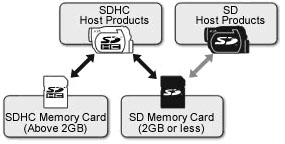
* SDHC Host Products can use both SD and SDHC Memory Cards.
* SD Host Products can use only SD Memory Card 2GB or less.
FAQ: DFC-011810-1
For commercial grade equipment we only recommend use of Kingston's industrial grade SD and microSD flash cards. Although our other flash cards may work, they are primarily designed to be used in consumer products such as hand held cameras, cell phones, MP3 players, GPS devices, etc., and thus not recommended for industrial applications.
FAQ: KFC-031714-SD-01
Warning: Formatting your flash card will erase all data files!
FORMAT ON DEVICE (i.e. Digital Camera)
Most devices that support flash cards (i.e. camera) will have a format utility. Before using this feature, make sure the flash card capacity and type is supported by the device. Also make sure the format (e.g., FAT32) options offered by the device are compatible with other device you might plan to pair the flash card with. To format the card, follow the Format instructions provided in the user's manual of the device.
FORMAT ON WINDOWS PC/NOTEBOOK
Type "This PC" in the Windows search window and press Enter. Locate and highlight the drive that corresponds with the card reader containing the flash card. Then with the right mouse button, right-click the drive and select "Format" from the pop-up menu to access the format utility.
Choose the file system that is appropriate for the card size and the device you plan to pair the flash card with. Note, 2GB and below (standard capacity) should use FAT, 4GB to 32GB (High Capacity) typically use FAT32. With capacities 64GB and above (Extended Capacity), we recommend using exFAT. Once you make this selection, click Format to complete the format process.
FORMAT ON macOS PC/NOTEBOOK
If you are using a card reader connected to a macOS system, open the "Go" menu and double-click on Utilities (If you do not see Utilities, double-click on Applications and then double-click the Utilities folder). Double-click on the Disk Utility icon. On the Disk Utility Dialog box, select the flash card's active partition. Note: There will be two listings for the card, the first one is the active partition and the second is the volume label. Click the erase tab located on the right side of the screen. Using the Volume Format drop-down, select “MS-DOS File System” from the list. Click Erase.
FAQ: KFC-012611-GEN-07
This is common for flash storage, whether internal SSD, Flash Card, or external USB storage, and is due in part to a variance in how flash memory vs spinning platter hard drive manufacturers calculate megabyte. Hard drive manufacturers calculate a megabyte (or 1,000x1,000 bytes) as 1,000KBs, whereas the binary calculation for flash-based storage is 1,024KBs.
Example: For a 1TB flash-based storage device, Windows will calculate it as having a capacity of 931.32GB. (1,000,000,000,000÷1,024÷1,024÷1,024=931.32GB).
Furthermore, Kingston reserves some of the listed capacity for formatting (e.g., File Allocation Table) and other functions such as firmware and/or controller-specific information, and thus some of the listed capacity is not available for data storage.
FAQ: KDT-010611-GEN-06