MSI charged into the handheld PC market in March 2024 with their Claw range. It initially occupied a slightly higher price point than its main competitor, Valve’s Steam Deck, but this price did not reflect a significant advantage in storage space.
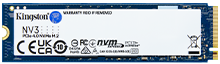
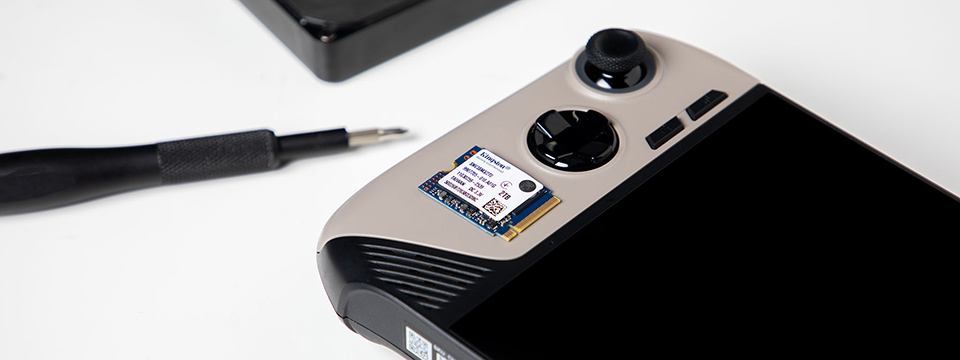
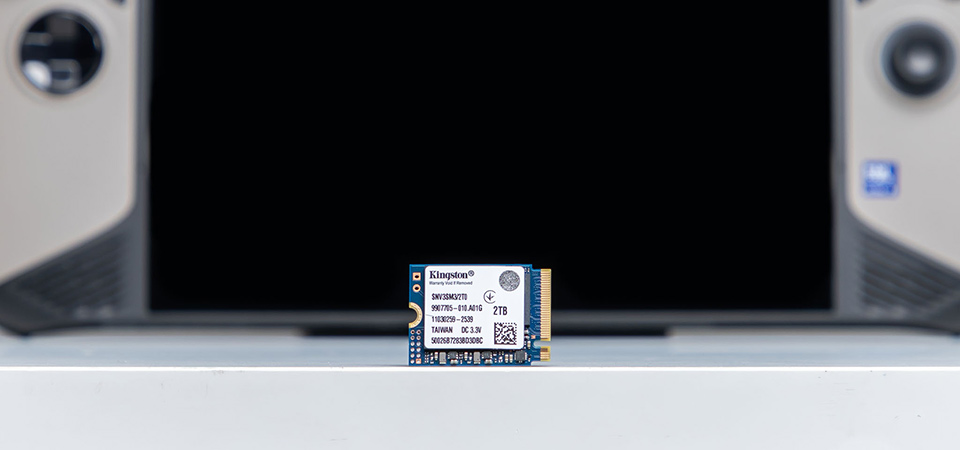
Fortunately, the MSI Claw’s SSD can be upgraded. The Claw 8 AI+ A2VM uses an NVMe PCIe 4.0 M.2 2230 drive, which can be replaced with another drive of the same type and higher capacity. We recommend the NV3 PCIe 4.0 NVMe SSD, which has a M.2 2230 form factor that offers 2TB of storage and read/write speeds of up to 6,000/5,000MB/s.
Before installation
The first thing you’ll need to do is create a Windows installation drive for your new SSD. You’ll need a flash drive at least 16GB or larger. Go to Microsoft’s website to download Windows 11 Disk Image and download a wireless driver from the MSI website to the same flash drive. Finally, download Rufus, which will turn your flash drive into a bootable disk. Select the ISO file for Windows 11 to use. This process will take a while.
With the boot disk created, remove your flash drive and any other attachments or storage such as SD cards from your MSI Claw. Before you turn it off, you may want to discharge the battery down to below 25%. The next phase of installation will require a Phillips head screwdriver and thermal paste, and ideally several small, easily labelled plastic snack bags.
Installation process
Use the screwdriver to open the rear panel. There are 6 screws you’ll need to remove. One may be underneath the warranty sticker, depending on your model. To keep these screws together, use a plastic snack bag.
To remove the back cover, begin on the right side of the Claw with an opening tool. Gently wedge the tool into the seam and carefully work your way downwards and around the entire perimeter until the cover detaches. Next, disconnect and pull out the battery. The cord is on its top side, in the center. You’ll want to unscrew four screws which should be kept separate from the rear panel screws since they’re different thread lengths.
For the Claw 8 AI+ A2VM model, you’ll find the current M.2 SSD in the central area, secured by one screw; remove the screw, then gently lift and slide the old SSD out. If a thermal pad is present, transfer it to your new SSD. Insert your new SSD into the slot, push it flat, and secure it with the screw. Finally, reinsert the battery, reconnect its cable, and reattach the back panel.
Configuring the new SSD
You’ll need to insert that flash drive you made into a Windows 11 boot disk. The Windows installation takes a while, especially if you discharged the battery, so you may want to plug in your charger when you boot the system. The flash drive will boot to the setup process for Windows 11, but the touchscreen functionality of your system will be inactive. You should plug in a keyboard and mouse to operate the system in the meantime. Then just follow the simple on screen instructions.
After the OS is installed, you’ll need to install the Wi-Fi driver from the flash drive. With the MSI Claw now internet-enabled, the OS installation can be fully completed. It will give you the option to restore from your previous drive, which you can decide for yourself. You still have essential drivers to install. Go to MSI to download all drivers and utilities supporting the Claw model you have.
The last step begins with updating the Microsoft store. Once you’ve done that, the Claw should prompt you to restart. On restart, it should next prompt you to sign its privacy agreement, and then to set MSI Center M as the default startup screen. Go to the MSI update screen and scan for any live updates needed, to ensure your system is fully up to date.
And there you have it; you’ve just upgraded the storage of your MSI Claw.